Translate

Monday, 14 July 2014

Android Screen Mirroring on desktop


Screen Mirror @ Desktop

Desktop app to control an android device remotely using mouse and keyboard. Should work on Windows/Linux/MacOS with any android device.

Installation

  1. Install the android sdk (download here).
  2. Screen@Desk.jar (download here)
  3. Connect your device through USB cable and ensure it's detected with "adb devices"
  4. Check USB Debugging in developer options in settings. If you couldn't see the devloper options in settings, then goto to about phone > go down there you can see Builder number click on it for seven times. Then go back and there you can find developer options . click on it you can find USB Debugging then check it.
  5. Make sure you have Java Runtime Environnement 5 or later installed.
  6. Open thw Screen@desk.jar and browse to adb.exe 
    here i install sdk in D drive and press Ok.
  7. Then you can see a window with ur mobile screen.
  8. Click HERE. You can launch it by typing "javaws <jnlp file>" from a command line.
Remote control using mouse/keyboard for ROOTED mobiles only...!
If mouse/keyboard control doesn't work, open a command line and type :
  • adb shell
  • su
  • chmod 777 /data/dalvik-cache
  • cd /data/dalvik-cache
  • chmod 777 ./

Features


  • Mouse and keyboard control FOR ROOTED DEVICES ONLY
  • Landscape mode (right click)
  • Video recording
  • Basic file browser

Wednesday, 9 July 2014

New Features of Android L

              Google has officially unveiled Android L at it’s I/O 2014. There are plenty of cool new features, there is many changes in UI and UX than the previous version of android Kitkat. There are also enhancements for battery life and deeper app integration across the board. Apart from all there are several major cool features in the new Android L. If you are nexus 5 or nexus 7 user then you can taste new Android L or for mobile app development. You can download developer preview from here.

New Features of Android L:

Android L 300x163 New Features of Android L

1. New Interface: Material Design

          Android L will bring a totally new user interface to the most popular mobile operating system in the world. The new interface will be based on a design language called Material Design, which adds more animations, shadows. The navigation bar also get a whole new look with this release the Home, Back and Multitasking keys are now symbolized by a circle, triangle and square that makes it pretty good.

new ui android l 168x300 New Features of Android L

2. Redesigned Recent Apps : 3D Multitasking


The multitasking menu of Android will get a 3D look in android L. This is also courtesy Material Design and shows the open apps as overlapping cards. The 3D effect is generated with the help of “shadows and perspectives,” Google says. Google says this will make multitasking on your devices easier.

3d multitasking android l New Features of Android L

3. Enhanced Notifications


There is major change in notification bar. Now notifications in Android L will appear like Google Now cards and will be accessible right from the lock screen on Android devices. Therefore, users will be able to read, open and dismiss notifications without unlocking their smartphone or tablet.
enhanced notifications android l New Features of Android L

4. 64-Bit Compatibility

Just like Apple’s iPhone, Google has announced that Android supports 64-bit processors from the next version. This means that addressable memory constraints are now lifted and Android devices will be able to make full use of the available RAM.


64 bit android l New Features of Android L


5. Improved Battery Life

Android L is expected to bring some serious battery improvements to your mobile devices via Google’s Project Volta. Featuring a built-in battery saver that detects when your handset is low on juice, the app can automatically reduce CPU load and display brightness . According to Google, the feature can get you an additional 90 minutes of juice. That’s a lot of power when you’re running on empty. Android will now estimate how long it takes to fully charge the battery. When your device is plugged in, the lock screen will display how long it will take until your battery reaches 100%.
improved bettery android L New Features of Android L

6. New Security Features


Android L will include the much-needed kill-switch that enables users to remotely reset their smartphone or tablet in case it is stolen. In Secret mode, the device will not show any notifications on the lock screen. Android L also makes it easier to unlock your phone without having to constantly enter a pin or trace a pattern. If you have an Android Wear watch on, for example, your Android L device will recognize the watch and let you unlock your phone by simply tapping the power button. If you move the watch away from your Android L device, however, it will think someone else is trying to use your phone and force you to enter your pin or pattern lock.

security features android l New Features of Android L

Thursday, 3 July 2014

Best Softwares To Make WiFi Hotspot On Windows


Best Softwares To Make WiFi Hotspot On Windows 8.1/8/7 PC/Laptop


Make WiFi Hotspot Softwares
These days everyone have a WiFi enabled smartphone. Many smart people like you, are thinking to share their PC or Laptop Internet connection. Actually it’s a very good idea because this will reduce our data cost a lot. It’s not only about the cost, if you create WiFi hotspot in your Windows 8 or Windows 8.1/7 PC then you can share your Internet connection(LAN) with all your devices. This will be very useful when you have multiple desktop’s and WiFi enabled tablets and I pad’s.
Creating WiFi hotspot in your PC is very easy if you can get it right. I have already written two articles about this but those methods are little tricky. Many Windows users are feeling a bit difficulty with previous methods because those methods have to be done manually with command prompt. Now, i will tell you the best softwares to turn your Windows PC  into WiFi hotspot enable router. Before writing this article i have tried few softwares but i found two very good softwares. Anyway i will share more than two here. If possible try all of them and let me know which is your favorite one.

Softwares to create WiFi Hotspot in Windows 8.1, Windows 8/7 PC/Laptop

There are lot of softwares available on the Internet to make hotspot but this is the best and easiest way to create WiFi hotspot in Windows 8.1 or Windows 7/8.
  • I have been using this software for last three years.
  • You don’t need to have technical knowledge to use this software. Just download & install like any other windows software and reboot your Windows laptop or PC.
  • Then open connectify hotspot pro and start hotspot.
  • You can see the step by step article and download link to create wifi hotspot using connectify in Windows.
One and only worst part of this awesome software is it’s not a free software you have to buy it. If you can afford $30 kindly buy this awesome software and help developers. If you can’t afford that much money for a software as usual you can download it from Internet.
I know everyone cannot buy a software for $30. If you are looking for alternative method this is probably the best I can say.
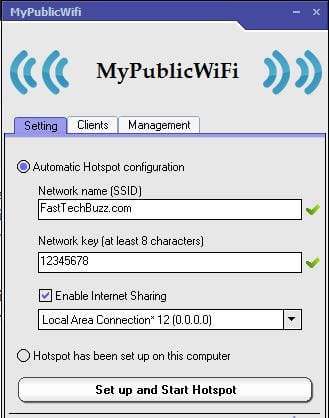
  • This is also one of the best software and very easy to use.
  • You can create hotspot in Windows 8 or Windows 7 as per official website but i have tested this on windows 8.1 also it’s working fine.
  • Download this software from here >> link to download
  • Install this software and open it you will see a prompt like in below.
  • There you can change hotspot name and password.
Mypublicwifi Hotspot software
While opening this software, open it as Administrator. Right click on the software on desktop or in Windows search then click on Run as Administrator.
This is another software to make WiFi hotspot in Windows 8.1 0r Windows 7/8  PC/Laptop.
  • You can download this software for free but  it contains virus.
  • I really hate this software because it contains malicious Adware in it. Never install this software in your PC.
I have tested this software 3 months back at that time it was full of Adware. If you are using this software let me know your opinion.
This also a good software but it is not a free software. It is available for 7 day free trail version but i think we don’t this because we already have Connectify if we want to buy a software. If you need a free one you can go for MyPublicWiFi.
Still there are lot of softwares are there but many of them are not working properly. I hope this tutorial helped you don’t forget to share this tutorial and let me know if you have any other best softwares.

Creating WiFi Hotspot Network in windows 8,8.1/7 using Command Prompt

Hi guys,
          Today i am going to show you how to create WiFi hotspot network without using any software’s within 2 minutes by using your command prompt in Windows 7 or Windows 8/8.1. 


Step 1: To Create WiFi Hotspot in Windows 8,8.1, Windows 7 PC

First you need to know that whether your PC hardware supports hotspot feature or not. To check this follow the instructions
  • Open your command prompt in administrative mode(if you don’t know this post your comment i will tell you)
  • Enter this command  :::   netsh wlan show drivers


  • If it show “yes” as you can in image you can create wifi hotspot in your PC.Go ahead you’re almost done.
  • If it shows No you PC can’t create hotspot.
  • Don’t close your command prompt until i say close it because we need it again.
  • Step 2 : To Create WiFi Hotspot Network in Windows Laptops

    Enter the below command (your CMD must be open in administrative mode)
    netsh wlan set hostednetwork mode=allow ssid=www.FastTechBuzz.com key=FastTechBuzz
    Hit enter then you will see like in below image.If you see image like below then your doing right.Now your hotspot is activated in your PC.

    • Here FastTechBuzz.com is your WiFi name and FastTechBuzz is your password.You can change your password if you want.

    Step 3: To Create WiFi Hotspot in Windows 8,8.1/7 Computers

    This is to switch on the created WiFi network Again Enter the below command.
    netsh wlan start hostednetwork
    Press Enter >> now you will see the command prompt as below.Now can close your CMD if you want. your hotspot is created you can see it in your other devices.

    Step 4:

    This is to share internet connection with other devices. For this
    • Click on windows button in your keyboard .
    • Then type Network and sharing  as shown in below image
    • click on settings there highlighted with yellow then click on the red marked option.

    After clicking on that red marked option you will see a window then @Left side top CLICK ON CHANGE ADAPTER SETTINGS then you will see a window like below there you can see the created hotspot name with Local area connection 13.

    Next choose your presently using internet connection (Here i am connected to internet using my BSNL modem) and right click on it and open properties >> then go sharing tab>>choose Local Area network under Home Networking condition as shown in below image click on OK.

    Then click OK.Your are done.
    If you have any problems post your comments below. I am ready to help you guys. Don’t forget to subscribe to our blog.

Thursday, 19 June 2014

How to get source code from .apk file

Hi All,

This helps to get java files and XML files from a APK file:

Procedure for decoding .apk files, step-by-step method:

Step 1:  Rename filename.apk to filename.zip

Make a new folder and put .apk file in it (which you want to decode). Now rename the extension of this .apk file to .zip (eg.: rename from filename.apk to filename.zip) and save it. Now you get classes.dex files, etc.We can see drawable folder and we can see the xml file we can open it from from text editors(notepad, notepad++, ...).
 If are not able to see xml and java files, so continue.

Step 2: Getting Classes from classes.dex to class files

Now extract this zip apk file in the same folder (or NEW FOLDER). Now download dex2jar from this linkhttp://code.google.com/p/dex2jar/  and extract it to the same folder (or NEW FOLDER). Move the classes.dex file into the dex2jar folder. Now open command prompt and change directory to that folder (or NEW FOLDER). Then write dex2jar classes.dex and press enter. Now you get classes.dex.dex2jar file in the same folder. Then download java decompiler from http://jd.benow.ca/  and now double click on jd-gui and click on open file. Then open classes.dex.dex2jar file from that folder. Now you get class files and save all these class files (click on file then click "save all sources" in jd-gui) by src name. At this stage you get java source but the xml files are still unreadable, so continue.

Step 3: Getting to read XML Files

Now open another new folder and put these files
  1. put .apk file which you want to decode
  2. download apktool v1.x  AND apktool install window  (both can be downloaded at the same location) and put in the same folder
  3. download framework-res.apk  file and put in the same folder (Not all apk file need framework-res.apk file)
  4. Open a command window
  5. Navigate to the root directory of APKtool and type the following command: apktool if framework-res.apk
  6. apktool d "fname".apk ("fname" denotes filename which you want to decode)
now you get a file folder in that folder and now you can easily read xml files also.

Step 4: Finished...!

It's not any step just copy contents of both folder(in this case both new folder)to the single one
and now enjoy with source code...
--Prasad VDV